
Jenkins Start, Stop, and Restart Cheat Sheet
Introduction
Hello, I'm Yuto Takashi from TIELEC Inc. In this article, I'll introduce how to start, stop, and restart Jenkins, a popular CI/CD tool.
Since starting, stopping, and restarting Jenkins are not frequent operations, it's easy to forget how to do them. Additionally, there are multiple methods, and it can be confusing to know which operation to use in which situation.
This article organizes these Jenkins start, stop, and restart methods. If you're struggling with Jenkins operations, please read this article.
[Updated January 2026] Added information about the latest authentication methods (API tokens) and systemd.
Summary of Jenkins Start, Stop, and Restart Methods
Jenkins start, stop, and restart methods are classified into the following patterns:
- Operations on Jenkins Environment
- Directly operate Jenkins installed on Linux or Windows.
- Operations via Jenkins UI
- Perform operations by logging into Jenkins.
- Remote Operations of Jenkins
- Operate remotely via API or CLI.
Additionally, there are multiple modes for stopping and restarting Jenkins. This article covers this information.
Stop and Restart Modes
There are six modes for stopping and restarting Jenkins:
- exit (shutdown) - Stops Jenkins.
- safeExit (safeShutdown) - Puts Jenkins into Quiet mode, waits for existing builds to complete, then shuts down Jenkins.
- quietDown - Puts Jenkins into Quiet mode in preparation for restart. In this mode, Jenkins does not start any builds.
- cancelQuietDown - Cancels "quietDown".
- restart - Restarts Jenkins.
- safeRestart - Puts Jenkins into Quiet mode, waits for existing builds to complete, then restarts Jenkins.
About Authentication Methods (Important)
There have been important security changes regarding authentication methods when remotely operating Jenkins.
Using API Tokens (Recommended)
Writing passwords directly in commands is deprecated. Using API tokens is strongly recommended for the following reasons:
- Risk of passwords remaining in command history
- Risk of damage escalation due to password reuse
- Issues from a security audit perspective
How to Obtain API Tokens
- Log in to Jenkins
- Click your username in the upper right corner
- Click "Configure"
- In the "API Token" section, click "Add new Token"
- Enter a token name and click "Generate"
- Copy the generated token (it will only be displayed once, so be careful)
Types of Authentication Methods
When using Jenkins CLI or API, the following authentication methods are available:
1. Specify API token directly
-auth USERNAME:API_TOKEN2. Use environment variables
export JENKINS_USER_ID=username
export JENKINS_API_TOKEN=your_api_token
3. SSH public key authentication (disabled by default, requires configuration)
This article uses API tokens in the following command examples.
Start, Stop, and Restart Execution Patterns
Operations on Jenkins Environment
Unix-based Environments
For environments like Ubuntu or Fedora, you can operate as follows.
Note: Starting with Jenkins 2.335 and 2.332.1, the package is configured with systemd (migrated from the older System V init).
These operations forcibly stop, start, or restart Jenkins. If you want to wait for currently running Jenkins jobs to complete, use quietDown or safeRestart via URL or API as described later.
start
sudo systemctl start jenkinsstop
sudo systemctl stop jenkinsrestart
sudo systemctl restart jenkinsstatus (check status)
sudo systemctl status jenkinsYou can check if Jenkins is running normally.
Troubleshooting
To check logs:
sudo journalctl -u jenkins.serviceTo monitor logs in real-time:
sudo journalctl -u jenkins.service -fWindows Environment
If you have Jenkins set up on a Windows server, there are two ways:
- If Jenkins is registered as a Windows service, you can operate it there.
- You can also operate from the command line with the following commands.
stop
C:\Program Files (x86)\Jenkins>jenkins.exe stopstart
C:\Program Files (x86)\Jenkins>jenkins.exe startrestart
C:\Program Files (x86)\Jenkins>jenkins.exe restartOperations via Jenkins UI
You can stop or restart by logging into Jenkins as an administrator and accessing URLs.
exit
http://<jenkins.server>/exitsafe exit
http://<jenkins.server>/safeExitquiet down
http://<jenkins.server>/quietDowncancel quiet down
http://<jenkins.server>/cancelQuietDownrestart
http://<jenkins.server>/restartsafe restart
http://<jenkins.server>/safeRestartScreens During Stop/Start
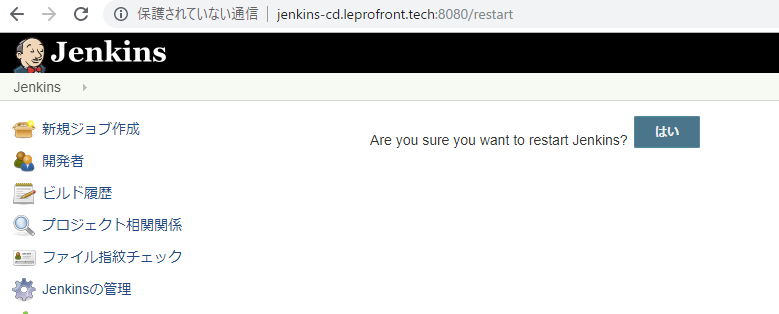
When you open the URL, a screen like the above will appear. Click Yes to send a request to Jenkins.

If a screen like the above appears, click Retry using Post to send a request to Jenkins.
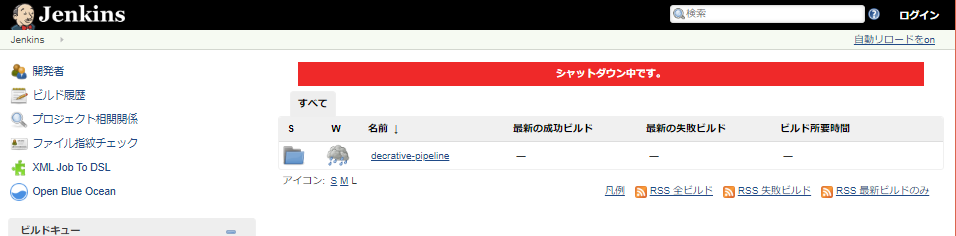
During shutdown, it will be displayed on the screen like this.
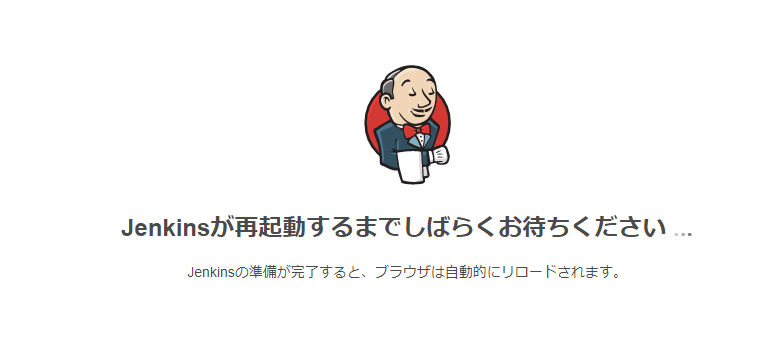
After executing restart, wait on this screen for a while. The screen will reload after the restart is complete.
Remote Operations of Jenkins
Security Warning: The following examples use API tokens. In actual operation, store them in environment variables or use credential files.
RemoteAPI (wget)
To stop using the wget command, use the following.
Note: Specify your username for <user> and the obtained API token for <api-token>.
exit
wget --user=<user> --password=<api-token> --post-data='' http://<jenkins.server>/exitsafe exit
wget --user=<user> --password=<api-token> --post-data='' http://<jenkins.server>/safeExitquiet down
wget --user=<user> --password=<api-token> --post-data='' http://<jenkins.server>/quietDowncancel quiet down
wget --user=<user> --password=<api-token> --post-data='' http://<jenkins.server>/cancelQuietDownrestart
wget --user=<user> --password=<api-token> --post-data='' http://<jenkins.server>/restartsafe restart
wget --user=<user> --password=<api-token> --post-data='' http://<jenkins.server>/safeRestartRemoteAPI (curl)
To stop using the curl command (recommended), use the following.
exit
curl -X POST -u <user>:<api-token> http://<jenkins.server>/exitsafe exit
curl -X POST -u <user>:<api-token> http://<jenkins.server>/safeExitquiet down
curl -X POST -u <user>:<api-token> http://<jenkins.server>/quietDowncancel quiet down
curl -X POST -u <user>:<api-token> http://<jenkins.server>/cancelQuietDownrestart
curl -X POST -u <user>:<api-token> http://<jenkins.server>/restartsafe restart
curl -X POST -u <user>:<api-token> http://<jenkins.server>/safeRestartJenkins CLI
You can do the same using Jenkins CLI.
Authentication Method 1: Using -auth parameter
java -jar jenkins-cli.jar -s http://<jenkins-server>/ -auth <user>:<api-token> <command>Authentication Method 2: Using environment variables
export JENKINS_USER_ID=<user>
export JENKINS_API_TOKEN=<api-token>
java -jar jenkins-cli.jar -s http://<jenkins-server>/ <command>
exit
java -jar jenkins-cli.jar -s http://<jenkins-server>/ -auth <user>:<api-token> shutdownsafe exit
java -jar jenkins-cli.jar -s http://<jenkins-server>/ -auth <user>:<api-token> safe-shutdownquiet down
java -jar jenkins-cli.jar -s http://<jenkins-server>/ -auth <user>:<api-token> quiet-downcancel quiet down
java -jar jenkins-cli.jar -s http://<jenkins-server>/ -auth <user>:<api-token> cancel-quiet-downrestart
java -jar jenkins-cli.jar -s http://<jenkins-server>/ -auth <user>:<api-token> restartsafe restart
java -jar jenkins-cli.jar -s http://<jenkins-server>/ -auth <user>:<api-token> safe-restartSummary
Let me summarize the content again.
Jenkins start, stop, and restart methods are classified into the following patterns:
- Operations on Jenkins Environment
- Directly operate Jenkins installed on Linux or Windows.
- On Linux, use systemd (
systemctl).
- Operations via Jenkins UI
- Perform operations by logging into Jenkins.
- Remote Operations of Jenkins
- Operate remotely via API or CLI.
- Use API tokens (passwords are deprecated).
Additionally, there are normal mode and safe mode for stopping and restarting Jenkins, so use them appropriately depending on the situation.
Security Points:
- Do not write passwords directly in commands
- Use API tokens
- Manage tokens with environment variables or credential files
References
Recommended Books

Was this article helpful?

If this article helped you organize your thoughts
a coffee-sized support would be much appreciated.
※ This is separate from tipping, but—
If you'd like to organize similar themes in your own context, I also offer dialogue sessions as a form of thought organization.
Recommended for you